Assign portraits to your wrestlers in bulk: browse, auto-match, or drag and drop. Your pictures survive every update.
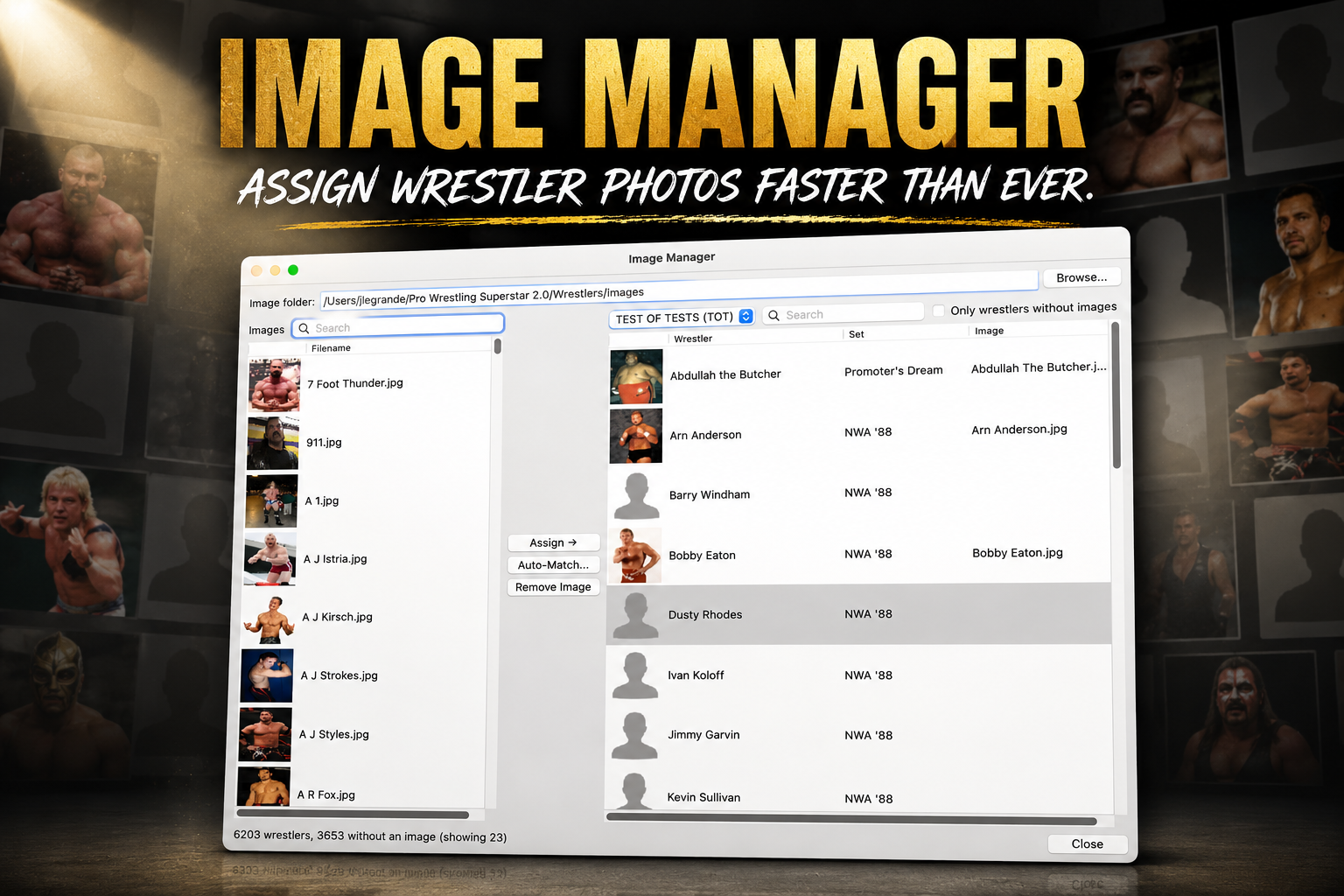
For as long as PWS has let you add a picture to a wrestler, there's been exactly one way to do it: open the Wrestler Editor, find the wrestler, browse for the image, save, and repeat. For one wrestler, fine. For a roster of dozens or hundreds, it was a chore nobody enjoyed.
So I built the inverse. Instead of going wrestler by wrestler looking for pictures, you point PWS at your pictures and hand them out to wrestlers. Say hello to the Image Manager, under File → Open Image Manager.
It shows your whole roster in one list, with each wrestler's current picture right next to their name, so you can see at a glance who has a photo and who's still a silhouette. The silhouettes are the work; everything in the tool is built to knock them out fast.
Point It at a Folder of Pictures
Hit Browse and pick any folder on your computer: your Downloads folder, a folder of wrestler images you've collected over the years, wherever they live. Every picture in it lines up on the left side of the window, ready to assign.
Auto-Match Does the Boring Part
Here's where a folder of fifty pictures becomes about ten seconds of work. If your image files are named after the wrestlers (Ric Flair.jpg, barrywindham.png, last-name-first, capitalization and spaces and punctuation all forgiven), just click Auto-Match.
PWS pairs every picture it recognizes with the right wrestler and shows you the list. Everything's pre-checked; uncheck anything that looks off, click OK, and the whole batch is assigned at once. No dragging, no clicking through wrestlers one at a time.
Or Just Drag and Drop
Prefer to do it by hand? Drag a picture from the left side and drop it straight onto a wrestler. The row you're hovering lights up so you always know where it's going to land.
You can even skip the browsing entirely and drag a picture straight out of Finder or Windows Explorer onto a wrestler. And if that wrestler already has a picture, PWS always asks before replacing it. No accidental overwrites.
Find Anyone Fast
A big roster needs filters, so the Image Manager has them:
- Narrow the list to a single promotion
- Search wrestlers by name
- Search the pictures by filename
- Tick "only wrestlers without images" to focus on exactly the ones who still need a photo
Auto-Match respects those filters too, so you can narrow to one promotion, point at a batch of images, and match only what you're looking at.
Your Pictures Stick Around
This is the part I'm proudest of, and it's invisible when it works, which is the point. Your image assignments are designed to survive everything.
When you assign a picture, PWS records it in two places that stick around: in the wrestler's own file, and in a separate assignments list that lives right alongside your wrestlers. When it's time to show a wrestler's face, it checks them in order: the wrestler's file first, then your saved assignments, then a placeholder if there's genuinely nothing. That layering is what makes it sturdy.
In practice that means: download a newer version of a wrestler from the Community Hub, and your picture stays put unless the new version brings its own. Re-generate the wrestler database to fix some other problem, and your assignments are still there afterward. The thing that used to wipe people's work simply doesn't anymore.
For Wrestler Creators
If you make wrestlers and share them, this one's for you. When you assign a picture in the Image Manager, it's written into the wrestler's file itself, so when you upload your creations to the Community Hub, the pictures travel with them. The people who download your wrestlers get them fully dressed, no extra steps.
One Thing to Expect
The first time you launch this version, you'll see a brief "Updating wrestler database..." message with a progress bar. That's a one-time tune-up that lets all of the above work smoothly. Every launch after that is back to normal speed.
Ready to Try It?
Launch PWS, open File → Open Image Manager, point it at a folder of pictures, and click Auto-Match. Supported formats are jpg, png, gif, and bmp. Update the way you normally do and the new version comes down automatically.
Go give your roster a face. I think you'll be surprised how quickly a wall of silhouettes turns into a wall of wrestlers.
— John